Tuesday, May 13, 2008

Creating a COM Proxy in .Net

I've got a VB6 COM component that is being used by lots of other applications: VB6 apps, Word Add-ins, Outlook add-ins, Outlook forms, VBScript libraries etc. I want to upgrade this to .Net so that (a) we are reducing our dependence on VB6, and (b) we can start using some of the cool new .net capabilities and (c) new .Net components can talk to this component via standard .Net methods rather than using COM.

The idea is to break this component into two separate .Net components. The first will be a proxy component which implements all of the original methods and properties from the VB6 component, and implements the same COM interface, so it can be swapped in for the old component. It won't do any work, but instead will invoke methods on the second component to do the work. The second .Net component will be a .Net assembly written in the proper .Net fashion that does all of the work that the old VB6 DLL used to do. New .Net applications can make calls directly into the second component and by-pass the COM interface.

So how do we create this COM facade? The way I ended up doing it was to extract the type library from the VB6 component, generate a .Net assembly that defines the interfaces in CLR metadata, and then created a .Net assembly to override the interfaces.
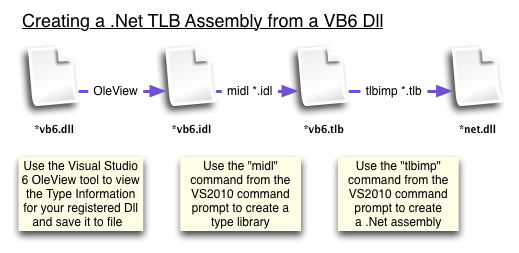
vb6-to-net-typelibrary-dll.jpg

The steps for this are:

1. On a machine which has your VB6 COM component registered and Visual Studio 6.0, fire up the OLEView tool.

2. Find your VB6 component. I looked under "Automation Objects" for the ProgId which is the "MyComp.ClassA" you use when you do a CreateObject("MyComp.ClassA") in VB6.

3. Select "Object-View Type Information" to display the "ITypeLib Viewer". Your IDL is in the right-hand pane.

4. Save the IDL by clicking the save button. You now have a "MyComp.IDL" file.

5. Fire up the VS2008 command prompt and navigate to your IDL file.

6. Type "MIDL MyComp.IDL" to generate a type library. I needed to reorder some of the things in the IDL to get it working. You will now have a "MyComp.TLB" file.

7. Create your .Net assembly by typing "tlbimp MyComp.Tlb /out:MyCompTlbAssembly.dll". This will generate a "MyCompTlbAssembly.dll" file. This is a .Net assembly that defines your interface. Now we need to override it and implement our new code.

8. Create a new .Net Class project. I called mine "MyCompProxyNET".

9. Add a reference to your recently create "MyCompTlbAssembly.dll" by using "Project-Add Reference" and then going to the "Browse" tab and finding your dll.

10. Create a class for the first class from your VB6 component that you want to override, eg ClassA. I called my class "ClassAProxy".

11. Add an import of the System.Runtime.InteropServices, set your prog id to match the original VB6 prog id, and implement your interface. So you have something like this:


using System;
using System.Runtime.InteropServices;

namespace MyCompProxyNET
{
[ProgId("MyComp.ClassA")]
public class ClassAProxy : MyCompTlbAssembly.ClassA
{
}
}


12. Now implement the interface for this class. VS2008 will generate stubs for you if you right click the interface ("MyCompTlbAssembly.ClassA" in this case) and choose "Implment Interface". Nice!!

13. Almost there, now we just have to make this COM visible. Under "project-Properties-Application-Assembly Information", check the "Make assembly COM-Visible" box, and "OK". Under "Project-Properties-Build" check the "Register for COM Interop" box.

14. Build your solution. Your .Net assembly is now the registered component for that ProgId. You can verify this by looking up the ProgId in the registry under HKEY_CLASSES_ROOT and following the Clsid to the HKEY_CLASSES_ROOT/CLSID/{your clsid}. You can see that the name of the .Net component will be displayed in the "InProcServer32" key. Previously your VB6 dll would have shown up in here.

Run one of your apps that used the old VB6 component and you should get a nice "The method or operation is not implemented" error message. This error is thrown by the .Net stubs you created in step 12. Just put some real code in your stubs and away you go!

Monday, April 28, 2008

Jim Webber = SOA - ESB

Just listened to a classic talk from Jim Webber about SOA and ESB. Jim Webber is a big name in the SOA space and is coming to Australia shortly to talk at the JAOO conference. In this talk he explains why SOA is good and why ESB is bad. It is very thought-provoking and entertaining. He thinks that your integration should be web services, but you don't want a big proprietary piece of middleware sitting in the middle of your enterprise.

http://www.infoq.com/presentations/webber-guerilla-soa

My favourite quote is his response to a question about orchestration at the end:

Orchestration is just a programming language. So if you want to build a service using a visual orchestration language, you're entirely entitled to do that. Provided you don't pollute the rest of the service ecosystem, that's great. I caution you that probably Java, C# or VB, or for heavens sake Haskell, will be a more productive environment for you to work in than sticks and boxes and lines - but if you're insistent you want to do that, that's great. Just don't think that you can draw a picture and then hit the button and get deployed into production. Because that's crack smoking fantasy time!

Tuesday, April 15, 2008

Go To Definition shortcuts

Across the IDEs I'm using at the moment, the "Go To Definition" short-cut (drill-down on method to see the code) is:


  • Eclipse: F3

  • VB6: Shift-F2

  • Visual Studio: F12 re-mapped to use the VB6 settings because F12 gives the Dashboard on Mac


Monday, April 14, 2008

Log4j Root Logger

I just found out that with log4j I can set-up a "root" logger. This is a catch-all logger that writes everything, regardless of the package. Seems pretty obvious, but I hadn't seen it before. If you use this in conjunction with a package logger, and you are outputting to the same file, then use the additivity="false" attribute on the package logger to stop lines appearing twice. My example log4j.xml file is below. Note that I output everything to stdout when developing, and then switch over to the rolling log file when I deploy it.


<?xml version="1.0" encoding="UTF-8" ?>
<!DOCTYPE log4j:configuration SYSTEM "log4j.dtd">
<log4j:configuration xmlns:log4j="http://jakarta.apache.org/log4j/">
<appender name="stdout" class="org.apache.log4j.ConsoleAppender">
<layout class="org.apache.log4j.PatternLayout">
<!-- Print the date in ISO 8601 format -->
<param name="ConversionPattern" value="%d [%t] %-5p %c - %m%n" />
</layout>
</appender>
<appender name="file" class="org.apache.log4j.RollingFileAppender">
<param name="file" value="/var/tmp/logs/myapp.log" />
<param name="MaxFileSize" value="10000KB" />
<param name="MaxBackupIndex" value="3" />
<layout class="org.apache.log4j.PatternLayout">
<param name="ConversionPattern" value="%d [%t] %-5p %c - %m%n" />
</layout>
</appender>
<logger name="org.apache.fop" additivity="false">
<level value="info" />
<appender-ref ref="stdout" />
</logger>
<logger name="com.example" additivity="false">
<level value="debug" />
<appender-ref ref="stdout" />
</logger>

<!-- root logger -->
<root>
<level value="info" />
<appender-ref ref="stdout" />
</root>
</log4j:configuration>


Friday, April 11, 2008

File Transfer between Machines using Remote Desktop over Cisco VPN

I access my work PC using Remote Desktop over a Cisco VPN. The VPN shuts down internet access on my PC while it is connected. I needed to get a large file from my work PC to my home PC over the VPN. For small files I'll use email with attachments but this doesn't work with bigger files due to size limits. The solution was to set-up a FTP Server on my home PC and use ftp from my work PC to put the file onto my home machine.

Setting up an FTP server on my home Windows XP machine was pretty straight-forward. It can be done through Add/Remove Programs, selecting Windows Components and then drilling down into IIS. Follow these steps here for more details. I set mine up with anonymous write access to keep it simple.

Once the ftp server was installed, I connected to my work PC went to the command prompt. The "ipconfig" command revealed the IP address of the VPN. It was then a matter of using "ftp" to connect to that IP address and put the file across. Use a login of "ftp" for anonymous access.

The only other thing to remember was to shutdown the ftp server (along with anonymous access privileges) at the end of it all. Don't want that running with anonymous write access all the time!

Thursday, April 10, 2008

Source Control under JumpBox

I've been doing .Net and VB6 development under Parallels on my Mac, and using Subversion mounted on a shared Parallels folder for source control (see this post). This gave me regular time machines backups...but the performance sucked! Checking at the trunk would take forever! And, of course, my Mac development work (Java, Cocoa, Grails etc) couldn't use the same repository.

So I've moved to Plan B - a Trac Jumpbox. This runs under Linux on Parallels and takes pretty much no set-up at all. You download it, fire it up and on the Trac home page you'll see the URL to use for Subversion access. I can now use this repository for both my Mac development and my Windows (parallels) development and it is all stored on the same machine. Plus I get the Trac source control viewer, diff tools etc which I've always loved (and a Wiki and bug management tool which I'm not going to use). It all runs right here on this machine, so I can do my dev work and check stuff in, without internet access.

There are a few hassles with this solution, so it might not be the final answer:

1. I need to remember to start-up the Trac Jumbox when I need source control. I could have it auto-start but I'm a big fan of a quick-starting machine. That's why I went to Mac in the first place! And I need to shut it down when I've finished.

2. When I'm doing Windows dev work I now have two virtual machines running. This performs fine as long as I don't sleep the machine. Waking it up is patchy at best and on several occasions I've had to reboot the Mac to get it working properly again. (Forget Fusion - I've tried it and I didn't like it!)

3. Time Machine doesn't back up virtual machines well (it backups the whole machine up every time), so it doesn't back my source control up. So I'm only backing up once a week via SuperDuper. This is not ideal!

4. This doesn't help me to develop on other machines in the house, or off-site. Should I be using a server, or perhaps hosted source control?

We'll see.

Monday, March 3, 2008

Remote Work and Communication

I've been working remotely, doing primarily development and architecture work, for the past 24 months. During this time I've used quite a few different communication mediums, each of which had their strengths and weaknesses.

Emails are the primary way of communicating. They are great for keeping track of what was said, clearly thinking out and stating a point, and useful for managing work.

Instant Messaging (IM) is very useful for a quick back and forth discussion: "how do you do X?", "can I checkout Y?", " I can't access Z, is it down?" Again, you have a full searchable history of what's been said which is very useful. If you find yourself chatting for more than 30 mins then you should probably have made a phone call. You also need to be careful not to slip into idle chatting which can be counter-productive (for both parties!). You can however, answer in your own time and you can flag yourself as busy if you don't want to be disturbed. Also, Skype client offers encryption which keeps everything safe.

Voice/Skype Sometimes a 3-day email back and forth could be easily solved by a 10 minute phone call, particularly something like talking though a business requirement with a BA. And it is good in the remote development world, to have a regular voice conference call/team catch-up. I used Skype because it is free, and free is good!

Collaborated Documents I have started using this with my "To Do" spreadsheet via Google Docs. It is not yet proving super-beneficial but I think that over time, once we adjust to think this way, it will offer a lot and save a lot of to-ing and fro-ing of document versions. I've used collaborated docs to good effect with bug lists.

Wikis These are super-useful. Typically have one per project. Source control, all project documentation, bug lists, project "how-tos" etc. People end up using it because they are just so darned easy to update! All those 1/2 to 2 pages documents end up being written in here. If your team are slack at documenting then try introducing a wiki! My only gripe (as a team member) is that it is not so easy to throw it on a flash drive and take it away with you when you leave.

Twitter Played with this for status updates but it didn't stick.